Apple isn’t talking about the iPhone 6s just yet but thanks to a series of credible rumors in July, it’s clear that the company has new iPhones on the way. With July coming to an end, we want to take a look at some of the things we learned about the iPhone 6s and relate them to those of you who are thinking about buying the iPhone 6 right now.
Last year, Apple used the month of September as its iPhone launch month. There, the company debuted the iPhone 6 and iPhone 6 Plus, two big screen iPhone models that took over the flagship role from the iPhone 5s. The two devices were released in late September and they immediately became two of the top phones on the market.
iPhone 6s rumors have been rampant in recent weeks as we’ve pushed closer to Apple’s usual iPhone launch window. We’ve seen rumors touch on everything from the iPhone 6s release date to the iPhone 6s specs. The new iPhone hasn’t been confirmed but we’ve already learned quite a bit about Apple’s plans for the fall.
Today we want to take a look at a few of the things we learned about the iPhone 6s in July. To us, these are the most important things you’ll want to keep in mind if you’ve been looking at buying Apple’s current 4.7-inch iPhone. Keep these things in mind as we exit the month of July and enter the month of August.
iPhone 6s Release Date
The first thing that we’ve learned in July is that the iPhone 6s is making progress behind the scenes but it’s probably not going to be coming to shelves in July or August.
The iPhone 6s has reportedly entered the production phase and Apple and its manufacturers are expected to ramp up that production in August ahead of an unknown release date. The company has also reportedly begun production of the chips that will appear inside the iPhone 6s.
Nothing is confirmed but all signs point to an iPhone 6s release date in September with iOS 9 after several more weeks of production. Apple has reportedly asked suppliers to deliver 85 million to 90 million parts for the new models, a sign that the company expects big sales in 2015 and beyond.
If you’re looking to physically compare the iPhone 6 to the iPhone 6s, you probably have a few more weeks to go. Apple typically sends out invites a few weeks in advance so you probably won’t have to wait until the actual date itself to confirm the iPhone 6s launch.
iPhone 6s Specs
If you’re looking into buying the iPhone 6 now or waiting for the iPhone 6s release, you probably want to know how the two phones will compare to one another.
We don’t have a full iPhone 6s spec sheet but what we do have is a list of credible rumors that hint at some of the iPhone 6s’ most important specifications.
First, the iPhone 6s is expected to retain the same 4.7-inch display as the iPhone 6. It’s also expected to keep the same screen resolution. No jump to Quad HD resolution this year it seems. The iPhone 6s display is however expected to feature something new.
Analysts continue to predict the arrival of Force Touch technology, the same tech that’s found in the Apple Watch and new Macbook. If true, it would likely allow iPhone 6s owners to use a hard press to open up new features within iOS and within certain applications.
There’s also been back and forth about the amount of storage on the iPhone 6s. Rumors have pointed to a16GB or 32GB base model. The iPhone 6 comes with a 16GB base model but for many people that isn’t enough, especially without expandable storage.
Apple is reportedly entertaining the idea of boosting the iPhone’s storage to appease consumers though it’s not clear if a deal will get done in time for the phone’s release.
The iPhone 6s is rumored to have a new processor and modem combination that could produce better battery life and faster LTE, a 12MP camera and a new 5MP FaceTime camera, iOS 9, and a design that’s in line with the all-metal form factor that Apple debuted with the iPhone 6 and iPhone 6 Plus.
In other words, this probably isn’t going to be the iPhone 7. What it will likely be is a souped up version of the iPhone 6 with better cameras, a more efficient processor, and Force Touch technology leading the way.
iPhone 6 Will Be Getting Better, Not Worse
The iPhone 6 isn’t going to make the wait for the iPhone 6s release an easy one.
Thanks to the iOS 9 beta, we’ve learned that the update is going to be coming with some impressive features including improvements to battery life. That’s not all either. The slideshow below goes into detail about the iOS 9 features we’ve found to be the most exciting.
With these apps your Android phone or tablet becomes an essential travel companion
There are a whole bunch of great apps available in the Google Play Store for those of us who travel, be it regularly or only occasionally.
Whatever the trip, whatever the purpose, with an Android smartphone in your pocket you've got the potential to have a powerful travel arsenal at your disposal to help you out in any situation.
It'd be impossible to mention them all, or even just all of the good ones, there's so many. But we've whittled down to a list of what we consider to be 10 of the very best travel apps available for Android, in particular apps that aren't too specific (like airlines) or too region restricted. Let's take a look.
TripIt
TripIt is as close to a no-brainer for frequent travelers that you'll find. It is so useful it's actually ridiculous. So long as you're happy enough allowing it access to your inbox, you need never worry about collating your travel plans again. Flights, hotels, train journeys and much more will just automagically be pulled into your TripIt account from your inbox and have trips created for you. As you book more for that trip, it's smart enough to recognize the matching dates and organize accordingly. (And if you'd prefer TripIt not sniff around your inbox, you can still send itineraries manually.)
All this is available in the free download (ad-supported) or the regular ad-free $0.99 version. If you pay up for a yearly TripIt Pro subscription you get even more on top of this. Push notifications keep you up to date with the latest as you're hauling through the airport, seat tracker helps you set up alerts to find a better seat and you can even keep track of your frequent flyer programs all in the one place.
If you could only have one app to manage your travel plans, this should be it.
Hotel Tonight is one of those apps with a very focused purpose, but that delivers that purpose extremely well. It only offers you the chance to book a hotel to check in on the same day – hence the name. It doesn't have hundreds of hotels to choose from, rather offering up a selection with deals on available rooms. If you're travelling at short notice, Hotel Tonight can help take some of the grind out of finding some accomodation.
It also comes with a really nicely done Android application that's well designed, easy to use and allows you to integrate your Google Wallet account if you're in the U.S. Add to that support for a bunch of major cities across the States and around the world and you'll never be left without a bed for the night.
If you're looking to book a hotel a little further in advance than the day of travel you can do a lot worse than Laterooms.com and its Android app. The service itself is very competitive with frequent deals across a range of hotels to take advantage of and the Android app is absolutely superb.
It pulls in Google Maps to overlay hotels and their respective prices on so you can get a real feel for where you're searching. It also has the traditional list view and a whole host of filters you can apply to help whittle down the search listings to find exactly what you're looking for.
The simple slide out menu helps you manage your account on the go and access your present, past and future bookings and generally offers a pleasant experience to something which is often tedious and tiresome.
Airports are usually noisy, hot, extremely busy and full of people rushing around left right and center. Or at least that's how it goes at London airports! We're not all priviliged – and wealthy enough – to be allowed access to our airlines business and first class lounges, but there are other options at the terminal. And with Loungebuddy on your Android device you can find the very best of them.
It crowdsources its reviews – think TripAdvisor, but for airport lounges – and its users can upload images along with some blurb to help you decide whether or not its the one for you. Airline lounges are also included so you can check out that swanky first class lounge before you get to the terminal. Just add in your journeys and let it do the rest.
It's well designed, easy to use, full of useful information, and just might help you escape the melee.
We've all been there. We're out shopping in a foreign country and the first question is always "I wonder how much that is in (insert your own currency.)" So grab a currency converter app to help you out. They're not particularly exciting, but XE Currency is one of the best of the bunch. At a glance you're able to convert into a range of different currencies and the exchange rates are updated frequently.
When you're in a strange town you still need to get around and that's where Uber comes in. It gets the nod here over some similar services primarily because of its more global reach. With big money backers that includes Google Ventures, Uber allows you to call for a ride and pay for it without having to stand in the street trying to hail a cab or hand over any cash. In the U.S. you can even pay using Google Wallet.
Uber has different levels of car from the more basic through 'executive' and right up into 'luxury.' The fare quoter at least gives you an idea how much you'll be paying for each, but the rates are generally extremely competitive and you might well find that you can go around in a bit of style while you're out on your travels. There's also plenty of opportunity to earn free credit – sign up using a referral to get started then get your friends and family to use your own links to boost your own account.
The business travellers best friend. If you're on a business trip and you're going to need to submit an expense report and receipts then Expensify is still one of the easiest ways to collate that information. It's been around for some time now and has a faithful user base that swear by it. It's hard to argue with any of them when you've got things like travel itinerary support and smart scan that will read the information from just your pictures of receipts.
You can try it out for free too for individuals. Can't say fairer than that.
Google Maps needs literally no introduction. It remains to this day one of, if not the very best mobile mapping service around. When you're travelling you're going to need to know where you're at and where you're going. And for that you can't go far wrong with Google Maps.
And with the latest update adding much easier access to offline maps, Uber integration and a bunch more, it really is a travel essential.
The Samsung Galaxy S6 and Galaxy S6 Edge have two light up buttons on each side of the dedicated home button, and they glow when users interact with the device. This is so you know where they are, and can easily see the back and recent apps buttons. These only stay lit up for 1.5 seconds on the Galaxy S6 and Galaxy S6 Edge, and some owners may want to adjust this and make them stay lit longer.
The capacitive touch buttons simply don’t stay on long enough for most users, and to make matters worse Samsung let carriers in the United States remove the option to adjust it. With the Galaxy S5 you could change this setting from 1.5 to three seconds, six seconds, off, or always on when the screen is on. However, all carriers but AT&T completely removed this setting on the Galaxy S6 and Galaxy S6 Edge, but we have a way around that.
For some these lights can be frustrating when in a dark environment and will want to turn them off completely, and for others 1.5 seconds is simply not long enough. AT&T has the lights stay on for six seconds, which is perfect for most, but if you want to adjust them on AT&T and other carriers, read on for the quick instructions.
Every time you touch the screen or use the Samsung Galaxy S6 or Galaxy S6 Edge these lights turn on, but they quickly turn off and you no longer see where the buttons are. Those on AT&T are probably happy with the six second light duration, but may want to turn them off or turn it down to a shorter amount of time.
Then, for Samsung Galaxy S6 owners that bought the smartphone from Verizon, T-Mobile, Sprint or US Cellular, you’ll have to use an app to change this, because for some unknown reason all other carriers removed the option in settings. It’s frustrating that such a simple setting has been removed from almost all versions of this phone, but luckily for owners there’s a way around this poor decision.
Instructions
Those with the AT&T Samsung Galaxy S6 or Galaxy S6 Edge simply need to head into Settings > Display > Touch key light duration > and change this to 1.5 seconds, six seconds, always off, or always on. It’s just that simple. A few taps in settings and you’re all done. See the screenshot below.
s you can see, this is clearly a very easy and simply to understand option in settings on the AT&T Galaxy S6. I have mine set to six seconds as I find that to be the perfect option, but wouldn’t mind three seconds being a choice.
However, I can’t complain, because if you have the Galaxy S6 from any carrier other than AT&T you don’t have this option at all and have to download a third party app from the Google Play Store.
The link above is for a simple little application that will allow all Samsung Galaxy S6 and Galaxy S6 Edge owners to easily change the capacitive touch lights on their phone. You’ll be able to turn them completely off, set them to always stay on, or change the light duration.
As you can see above there are more than enough options for owners with this application. The slider changes the amount of time the button lights stay on, and that’s about all there is to the app. Extremely simple and easy. The developer states this was made specifically for the Galaxy S6, but mentions it should work with any and all Galaxy devices, but it hasn’t been tested.
Android 5.1 indefinitely delayed for Motorola Moto X 2014 Pure Edition in USMotorola
Soon after it was on an active rollout path for users of Motorola's Moto X (2014) Pure-Edition smartphones in the US, Google's more recent Android 5.1 (Lollipop) OS update has now stopped in its tracks due to a newly detected issue/bug.
As per a Ubergizmo report, that quotes an official Google+ post by Motorola's senior director in charge of software product management David Schuster, a majority of Moto X (2014) Pure Edition owners are yet to receive Android 5.1 started via the initial rollout.
Users of the second-gen Moto X Pure Edition can expect an indefinite delay before they receive the Android 5.1 OS update that is designed to fix bugs inherent in the older Android 5.0 (Lollipop) firmware upgrade.
The reason quoted for the above delay, is the detection of last-minute technical issues; David Schuster states that these issues are being resolved and the Android 5.1 OS update would be released at the earliest.
Therefore, Moto X (2014) Pure Edition users can check their handsets for the Android 5.1 firmware upgrade and let us know the status of the new software's rollout, in the comments section below.
Enhancements to look forward to post installation of Android 5.1
Google's Android 5.1 OS update fixes the following bugs inherent in the comparatively older Android 5.0 (Lollipop) OS update:
Clock in the status bar isn't updating and alarms not going off
Can't delete SMS messages when the SIM card is full
No ringer audio while making an outgoing call
Calculator floating point calculations
Chrome crashes when launched
Frequent restarts while watching Netflix
Wi-Fi not automatically reconnecting to home Wi-Fi
Wi-Fi not connecting after being idle all night
Wi-Fi connection issues with multiple routers in one location
Bluetooth discovery is not triggered when you refresh settings
CPU wakelocks that contribute to heavier battery drain
Connection and synchronisation issues with MS Exchange servers
Incorrect default APN
Cannot unlock the SIM with a PIN/PUK code
Cannot play 'pinned' content
How to manually search for Android 5.1 and install
Apart from being available over-the-air, Android 5.1 can also be searched-for manually and downloaded/installed.
Before manually searching for Android 5.1 and installing it, users need to connect to a Wi-Fi network. Also ensure that the battery of the device has at least 50% charge.
Select the Settings icon in the apps menu
Select 'About phone'
Select 'System updates'
Select 'Yes, I'm in'. After the software is downloaded, select 'Install now'
After the software is installed, your phone will re-start automatically.
Top tips and trick for Galaxy S6 and S6 Edge(Samsung)
It has been three weeks since Samsung's new Galaxy S series flagship smartphones featuring cutting edge technology went on sale in the UK and other regions across the globe.
While most of you are quite familiar with Galaxy devices, those who have bought a brand new Galaxy S6 or, S6 Edge would be in search of guides to access all the new features Samsung has stuffed.
IBTimes UK brings you a list which bundles a whole lot of tips and tricks to get started with the new Galaxy devices. The list includes shortcuts to use the features as well as to access them.
Double tap home button to launch the camera in one second. You might also disable the double-tap quick launch in camera options to get rid of the delay when pressing the home button. This feature makes the home button quicker.
Use themes to change the look of your phone.
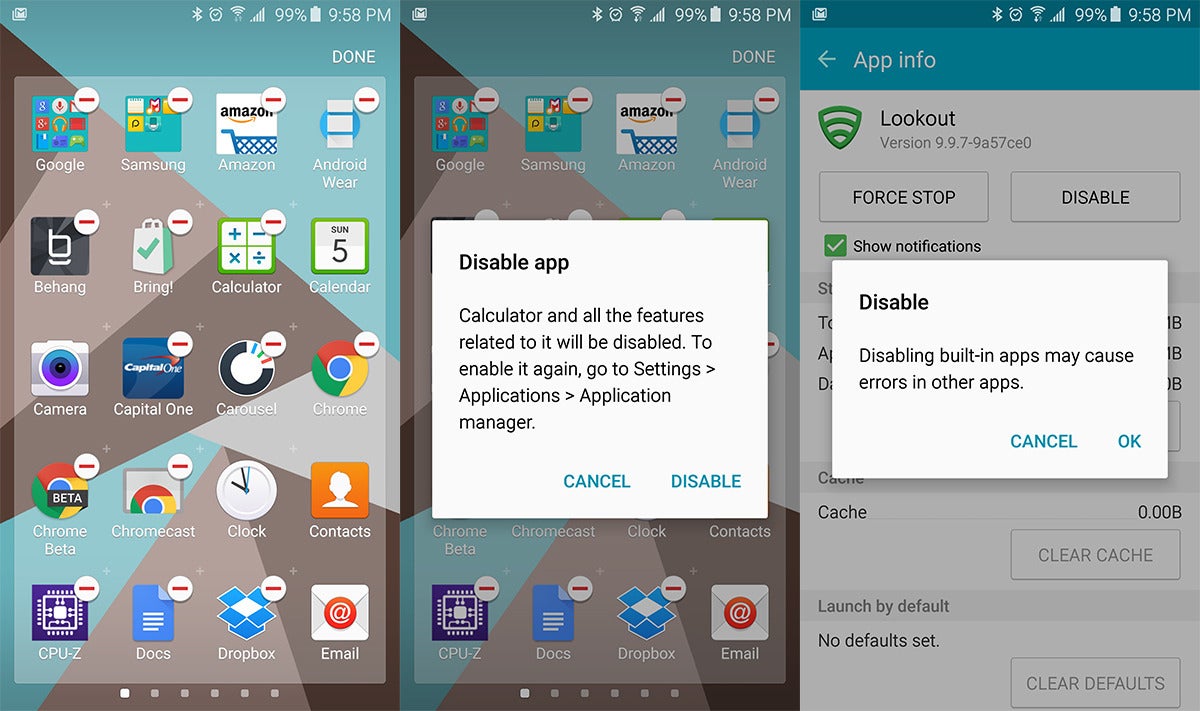
Go to your App drawer and long press an icon if you want to move or, delete it. The small circles with the red sign will let you delete an app which is from a third-party or, disable it if it is a built-in one.
Hold Power button for more than seven seconds for the phone to reboot. Hold Volume Up + Home + Power buttons together to boot the phone into recovery. Hold Volume Down + Home + Power to boot it into Download Mode.
If you want to capture a selfie, just frame the image first then put your finger on the heart rate sensor under the LED light at the back.
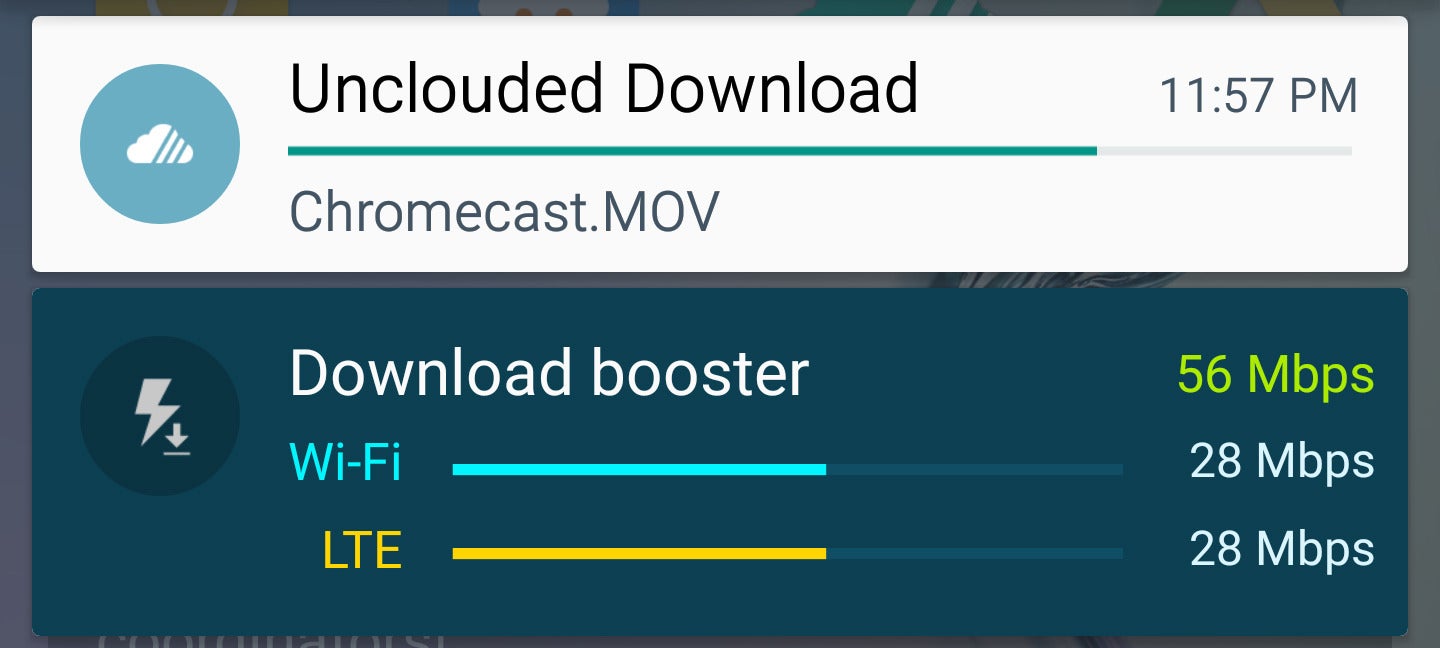
When you want to download a large file, 30MB+, and you have LTE (you are near Wi-Fi), activate Download Booster from Settings>> More Connection Settings. This combines both Wi-Fi and LTE connection into one for faster download speed.
Enable the Notification reminders from Settings>> Accessibility.
Users are recommended to claim free the 100GB storage with OneDrive.
You can hide your private content including photos, videos, music and web history by activating Private Mode which can be found under Settings>> Privacy and safety.
Use Do Not Disturb mode for any person who is not allowed to contact you when the feature is on.
For Screen Pinning, navigate to Lock screen and Security >> Other Security Settings>> Pin Windows.
You can customise your screen grid (4x4, 4x5, or 5x5) by pinching in when you are on home screen.
To enable Developer Options, go to Settings>> About Device>> Tap on Build Number 10 times and unlock Developer Options.
Ensure that your device is faster by going to Developer Options then setting window animation scale, transition animation scale and animator duration scale to 0.5.
When you are in an app (like Chrome, Gallery or, anything else), and drag your finger from the upper right corner to the middle of the screen the app shrinks, which makes it more usable with one hand.
You can get changing lock screen wallpapers by changing it under the settings and select Multiple Wallpapers in the selection box.
If you are experiencing issues with Snapchat videos, go to Developer Options and uncheck Nuplayer.
For better results with the fingerprint scanner, register your thumb multiple times for it to be more accurate.
To capture screenshot hold Power + Home at the same time or, use palm swipe (turn on in settings).
For Direction lock, a new way of unlocking the phone, go to Settings>> Accessibility.
Under voice wake you can use Svoice to set a custom phrase to wake up the phone to listen to a command.
If you rest any registered fingers over the scanner, it will light up which registry it is in. It is helpful if you need to redo the fingerprint.
Remove the bloatware on Galaxy S6/S6 Edge using this method shared by recognised developer, gatesjunior. This method does not require rooting.
Go into recovery mode and wipe your cache, power off phone then reboot if battery drains out in standby.
Go to the dialer, press the green dial button to load the last dialed number.
Disable the capacitive lights without rooting the phone by using the Galaxy Button Lights, by forum member Avrex.
The volume down button can be used to take pictures when the camera app is running.
Use volume keys in default messaging app to increase or, decrease font size.
If you want to enable grayscale without going into Super Power Saving mode, go to Settings>> Personal>> Accessibility>> Direct access and turn both direct access on and grayscale. Doing this, a triple tap of the home button will toggle grayscale on and off.
Samsung didn’t see the kind of sales it hoped for with last year’s Galaxy S5, so this year the Galaxy S6 is a radical departure. A number of prominent features from last year’s device have been removed, and others are disabled by default to make for a cleaner experience. You don’t have to bend over backwards to get Samsung out of your face.
But there’s still plenty you can do to make the Galaxy S6 even better. Just go through these tips and you’ll be ready to rock.
Set up fingerprints
The new fingerprint scanner works a lot better than the one on Samsung’s earlier phones.
The fingerprint sensor is built into the home button, just like last year, but it has been vastly improved. Now you can just lightly press it to have your print recognized—no more swiping. The setup process takes a little longer, but it will still only take a few minutes. To add fingerprints, go to your main system settings and enter Lock screen and security > Fingerprints. You can add up to four prints here by tapping repeatedly on the sensor. You probably want to use your thumbs and index fingers on each hand.
Remember to tilt your finger back and forth and place different parts of it on the sensor. This will help the system to recognize you more easily and reliably. Also make sure to get the very tip of each finger. While you’re at it, you can configure the security settings to use your fingerprint for accessing your Samsung account and filling passwords in the stock web browser.
Activate Smart Lock
Even if fingerprints aren’t your thing, you should have some sort of secure lock screen. There’s no reason to deal with it all the time, right? The Galaxy S6 supports Lollipop’s Smart Lock feature, which you can access in the Lock screen and security menu. It’s a level deeper in Secure lock settings.
Here you can set geographic locations as trusted, so your phone will default to a standard swipe unlock at home, for example. The GS6 also supports trusted devices, so you can keep it unlocked when it’s connected to a chosen Bluetooth accessory or NFC tag.
Change your home screen grid and layout
You can change the arrangement of the home screen grid, to show more or fewer icons.
Samsung has added the ability to pick the size of the home screen grid for its stock TouchWiz launcher. You can use this to cram more icons onto each panel, but you won’t get as many options as you would with a third-party home screen app. Simply long press on the home screen and tap Screen grid. The default is 4x4—it can be changed to 4x5 or 5x5.
While you’re at it, a long press on the home screen is also how you can add, remove, and rearrange home screen panels. You can set any panel to be the main panel by tapping the home icon at the top of each page.
Remove the briefing screen
Samsung’s Flipboard-powered news feed page is back this year, though it’s now called “Briefing” instead of “My Magazine.” You can use it if you want, but it’s still a strangely laggy interface. The method to disable it has also changed on the Galaxy S6. Long press on the home screen, then scroll over to the Briefing panel on the far left. There’s a checkbox at the top, so go ahead and uncheck it, and you’re done. You can tap the checkbox again any time you want to be reminded why you shut it off in the first place.
Disable built-in apps and services
There’s still too much bloatware on the Galaxy S6, but you can disable nearly all of it.
Samsung has reduced the number of built-in apps and services this year, but this is still Samsung we’re talking about. There’s a fair amount of cruft to clear out. Most of the pre-installed apps can be disabled so they don’t show up in the app drawer or run in the background. A few can be uninstalled completely as well.
There are two ways to go about this. You can open the app drawer and hit the edit button, then tap the minus sign on the apps you want to remove. They will be uninstalled if possible, otherwise the system will simply disable them.
The other method is to go into the main settings and open Applications > Application manager and find the apps you want to disable or remove in the list. The info page when you tap on them will have the applicable options.
Some things you might want to get rid of include: Lookout, the Microsoft suite of apps, and S Voice. Since S Voice is no longer bound to the home button, this is all you need to do in order to do away with that particular feature. And you should. It’s still not very good.l
Set up ‘OK Google’ voice detection
If you got rid of S Voice in the above step, you might want to get Google’s (much better) voice command system set up. On the Galaxy S6, you can call up a voice query from any screen by saying “OK Google.” It just takes a few minutes of your time to configure.
Head over to the Google app by long-pressing the home button or launching it from the app drawer. Open the settings from the slide-out navigation drawer on the left and open up Voice> Ok Google detection. Toggle on the From any screenoption and go through the setup process. The phone will ask you to say “Ok Google” a few times so it can learn your voice.
Optionally, you can activate “personal results,” which makes voice search features available from the lock screen too. It’s a little less secure as someone could place calls or access your address, but it can be useful for quick access to voice commands. Be sure to check out our full list of Google Now voice commands.
Customize notification toggles
Change the quick toggles to the features you use most often.
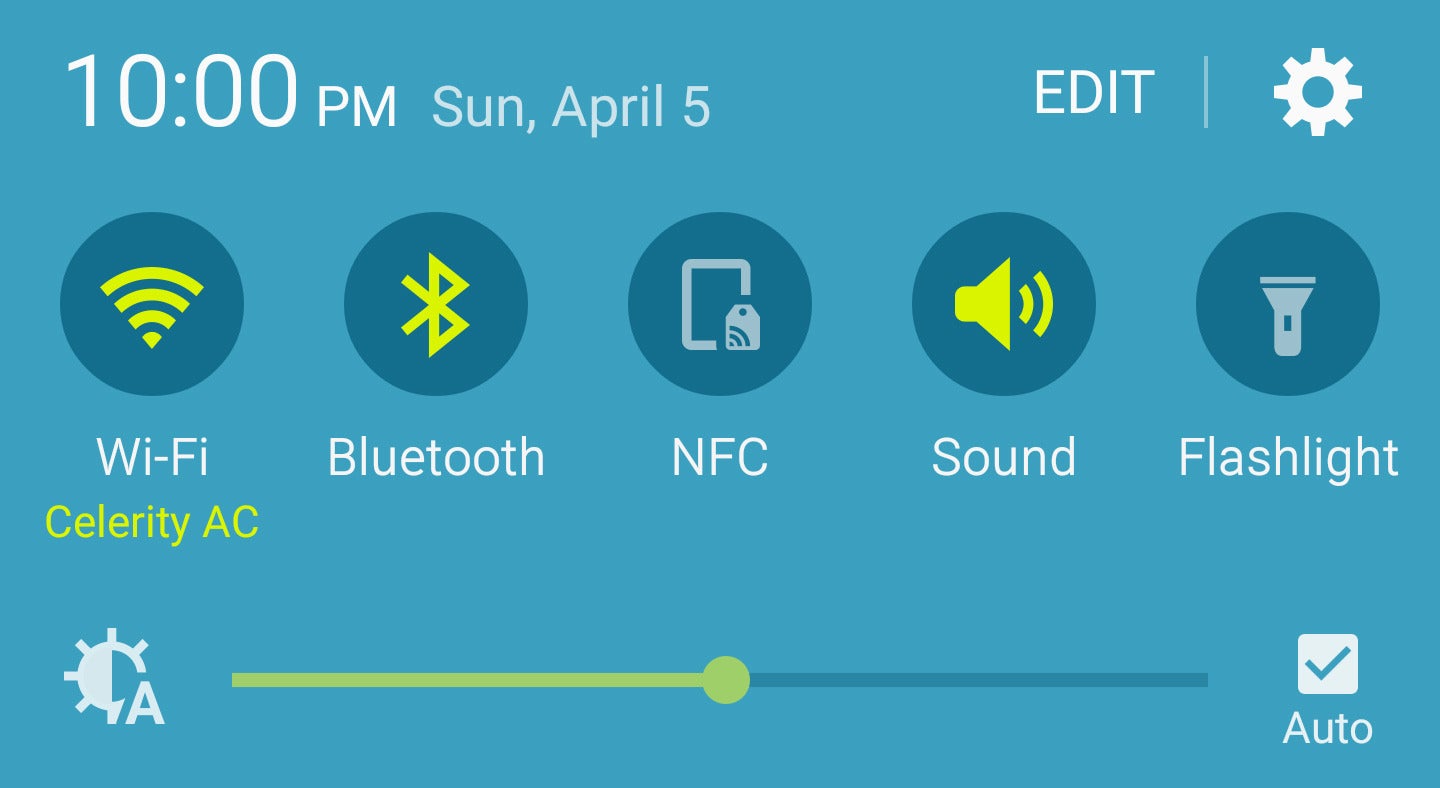
One of the most thoughtful aspects of TouchWiz is the configurable group of toggles at the top of the notification shade. This is an increasingly common feature in Android, but Samsung has actually been doing it for years. To change the order of the toggles, tap the Edit button at the top of the screen.
From this menu, you can drag the buttons around as you like. The first group of five icons at the top of the screen will be seen when you open the notifications and the second group is accessible by scrolling. Samsung has removed the expanded toggle list, so the remaining buttons are only available in the editing interface.
Customize quick settings
You might notice using the Galaxy S6 involves poking around in the settings a lot. Well, you can make some of those menus easier to get to by configuring the Quick Settings. Note, this is different from Quick Settings on stock Android—which refers to the toggles accessible from the notification shade. On the Galaxy S6, “Quick Settings” refers to the buttons at the top of your main Settings menu that take you to your most frequently used settings pages.
Open Settings and you’ll see a few buttons pre-populated at the top. Tap the Edit button in the upper right to change what’s shown. You can access things like WiFi, data usage, app notifications, fingerprints, and more.
Simply tap Edit at the top of the existing Quick Settings and put tap the checkbox next to those which you want to eappear. Quick Settings supports a maximum of nine links of your choice.
Enable download booster
Download booster is a great feature. Here’s hoping your carrier didn’t disable it.
Download Booster was one of the coolest features from the Galaxy S5, and it’s back with the Galaxy S6. However, it’s off by default and buried in the settings. When enabled, Download Booster combines the Wi-Fi and LTE connection to download large files faster than either connection could on its own.
To access Download Booster, open the main system settings and go to More connection settings > Download Booster. Turn it on and get ready for faster downloads. If this setting isn’t present, guess what? Your carrier made Samsung remove it. In fairness, Download Booster can gobble up a lot of data if you’re not paying attention.
Configure power saving modes
Samsung’s Ultra Power Saving Mode can stretch a tiny bit of battery life into more than a day of use. The phone won’t be as much fun to use, but you’ll be able to take calls, send messages, and use a select few apps. Ultra Power Saving Mode switches the device to a simplified black and white interface and disables most background services. Before you find yourself turning it on with a nearly-dead battery, you should fire it up while your battery is full and get things organized.
There’s a notification toggle to activate Ultra Power Saving Mode when your battery gets really low, but it can also be accessed from the battery settings menu. In Ultra Power Saving Mode you can select a few apps to have as shortcuts on the home screen. There aren’t many, but you can choose from the stock browser, Google+, messaging, and a few others.
There’s also a regular power saving mode that’s a little less extreme. This setting reduces the screen brightness, down-clocks the processor, reduces the display’s refresh rate, and shuts off vibration. This mode can be configured to switch on automatically when you reach a certain battery level between 50% and 5%. It’s a good idea to set this up. You’ll find it in Settings > Battery > Power saving mode.
Use the new multi-window mode
Run two aps at once, side by side, in multi-window mode.
Samsung has changed the way Multi Window works on the GS6. It’s now tied into the app switcher UI instead of being something you need to explicitly start up. Apps that support Multi Window will have a small twin rectangle icon in the corner when you have the app switcher open. You can tap on this button to move that app to the top half of the screen. On the bottom half you will get a similar stack of recent apps that also support Multi Window, as well as a scrollable list of all Multi Window apps.
You can also long-press on the multitasking button to move the current app to the top half of the screen (provided it’s a Multi Window compatible app), then pick another app for the bottom half. Once you’ve got both apps up, you can go back and forth between them and adjust the position of the divider, giving one app or the other more room. When you’re done, just hit back or home to leave Multi Window mode.
Enable screen pinning
Screen pinning is a feature introduced in Android 5.0 that makes it easy to hand your phone to someone else without worrying about them getting too nosey. It a few taps you can lock the screen to a single app to keep your stuff private, but you need to enable it first. Screen pinning is found in Settings > Lock screen and security > Other security settings. You’re looking for “pin windows,” which is way down at the bottom.
You can pin any app by opening the app switcher, then tapping the little pushpin icon in the lower right. When there is a secure lock screen on your device, you can also choose to require the PIN, pattern, or fingerprint when leaving the pinned application. This ensures only you will be able to unlock the phone and access other apps.
Pop-up view
Pop-up View makes more sense on a big-screen phone like the Note 4, but it’s nice that Samsung included it anyway.
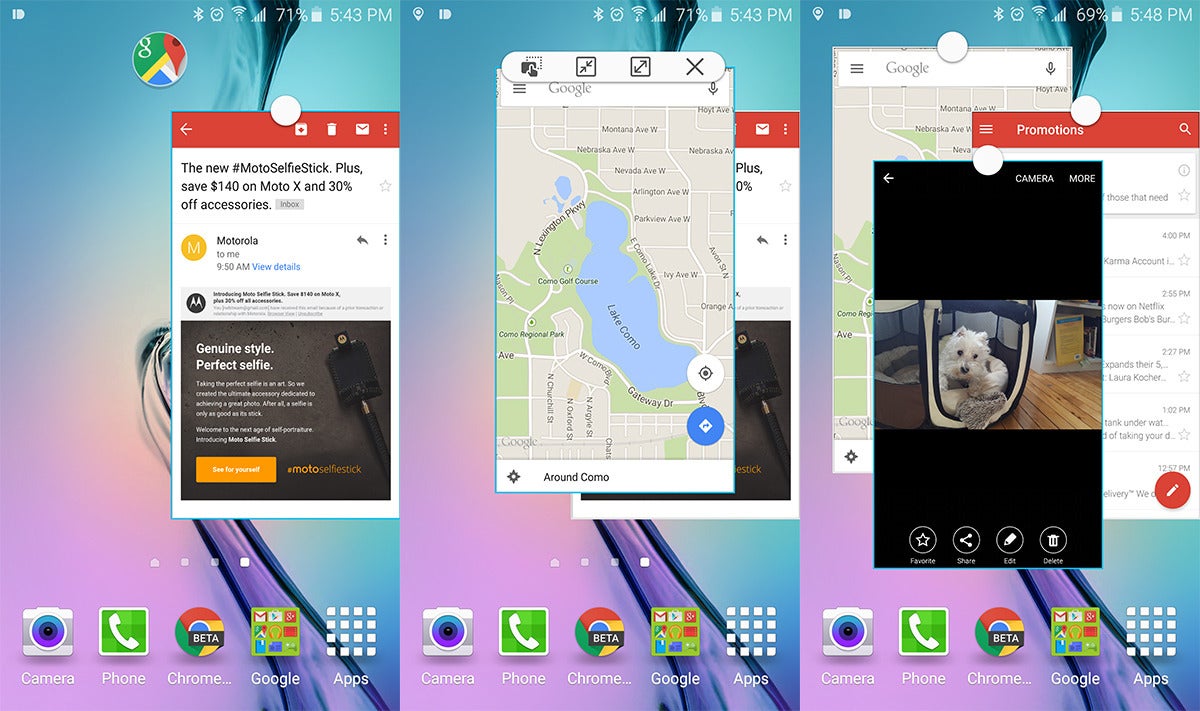
So now you’ve mastered Multi Window mode, but there’s something else of note tangentially connected to that. Samsung included a cool feature from theNote 4 called Pop-up View that works with any app that supports Multi Window (and only those apps). Basically, you get a resizeable floating app window that you can move around the screen. You can even have more than one and minimize them to floating icons.
There are three ways to go about this: long press on an app in the multitasking UI, drag down from the top right corner when an app is open, or use the pop up button when you have an app in Multi Window mode.
You can arrange these floating windows however you want, drag content between them, and maximize them to full screen at any time.
Pick ‘Do not disturb’ settings
The Galaxy S6 has support for the priority notification system that was added in Android 5.0, but it doesn’t use the same terminology. If you’ve used another phone with Lollipop, you might not even know what to look for. This seems unnecessarily confusing, but okay. All the notification modes are under Do not disturb, which you’ll find in Settings > Sounds and notification.
If you turn on Do not disturb mode, you have the option of allowing exceptions or not. With no exceptions, the phone won’t make a peep, not even for alarms. That’s the same as “None” mode from other Android phones. If you allow exceptions like alarms, calls from certain numbers, and priority apps, that’s the same as Priority mode.
If you don’t want to manually toggle Do not disturb every evening, you can use this settings menu to set a schedule.
Try some Themes
Support for themes is good! Samsung’s initial selection of themes is...not so good.
Samsung added a theme engine to Lollipop on the Galaxy S6, which is great. However, the themes available at launch are, well... ugly, to put it kindly. Still, this is a neat feature you should be aware of going forward. In time, more themes are sure to arrive that are easier on the eyes, and that could instantly make the Galaxy S6 more appealing.
The theme settings are available in the main system settings, or by long-pressing on the home screen. From here you can download free themes, buy premium ones (eventually), and apply them to the phone. This is an all-or-nothing scenario—Samsung’s themes come with sounds, wallpaper, icons, fonts, and interface colors. The few currently available are rather over-the-top, but there’s always hope for the future.